- Home
- Keyboard
Work without the mouse
Keyboard
RemoteFlow can be driven without a mouse. Terminal bindings are generated from the application's keymap; the two dual-pane pages have their own.
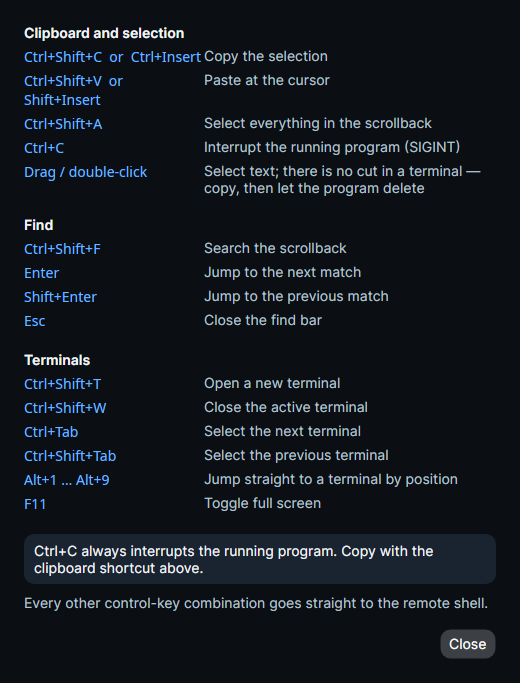
Terminal bindings
| Binding | Action |
|---|---|
| Ctrl+C | Send SIGINT (byte 03) |
| Ctrl+Shift+T | New terminal |
| Ctrl+Shift+W | Close the active terminal |
| Ctrl+Shift+A | Select all terminal text |
| Ctrl+Shift+F | Find in scrollback |
| Ctrl+Tab / Ctrl+Shift+Tab | Next / previous terminal |
| Alt+1 … Alt+9 | Select terminal 1–9 |
| Ctrl+Shift+C / Ctrl+Insert | Copy (Windows/Linux) |
| Ctrl+Shift+V / Shift+Insert | Paste (Windows/Linux) |
| Cmd+C / Cmd+V | Copy / paste (macOS) |
| F11 | Toggle full screen |
| F6 | Move focus out of the terminal |
| Shift+F6 / Shift+F11 | Send the terminal's own F6 / F11 |
All other control-key combinations go to the PTY; Alt plus text is encoded as an ESC prefix. Ctrl+C sends 03 unless the optional, default-off copy when selected policy is on and there is a selection.
F6 is the documented escape from the terminal, so it can never become a keyboard trap.
SFTP and Storage pages
| Binding | Result |
|---|---|
| Tab / Shift+Tab | Move between controls, and between the two panes |
| Ctrl+Shift+Left / Ctrl+Shift+Right | Jump to the local or the remote pane |
| Ctrl+L | Focus the path box of the focused pane |
| Enter | Descend into a folder, or transfer the selection to the other pane |
| Backspace / Alt+Left | Up one level |
| Alt+Right | Forward through the pane's history |
| F5 | Refresh the focused pane |
| F7 | New folder |
| F2 | Rename (not on Storage's remote pane: object storage has no rename) |
| Delete | Delete the selection, after a confirmation that counts what would go |
| Typing | Type-ahead to the next matching row |
Elsewhere: Ctrl+K opens the command palette, Escape closes the details or editor pane.
The in-app shortcuts dialog
Full keyboard operation is part of the accessibility story.